Introduction to Campaign Tracking (ADVANCED)
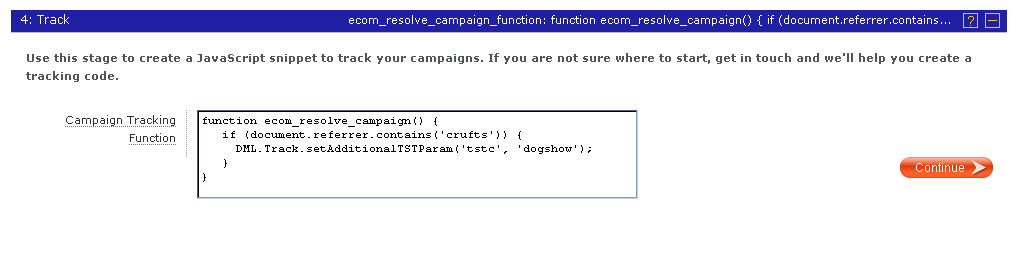
The Campaign Tracking stage of the Marketing Resources wizard
What does it do?
The Campaign Tracking eComponent is a bit different: unlike the other eComponents, it's not visible on your website pages. Rather, it's a function that enables you to add a javascript snippet to the <head> section of a web page that will track visitor sessions on your site and associate them with your different campaigns.
It's not a replacement for Google Analytics but works with it, giving you a complete picture of your sales pathways from each customer's first click through sales to lifetime revenue.
Do I have to write the tracking script?
You can if you want to. But if you're not sure where to start with writing a tracking script, don't worry - get in touch with your Account Manager, explain the campaigns you want to track and we'll help you write the snippet.
We'll create a well-commented tracking script for you, so if you then want to modify it you should find it fairly easy to work out what to do.
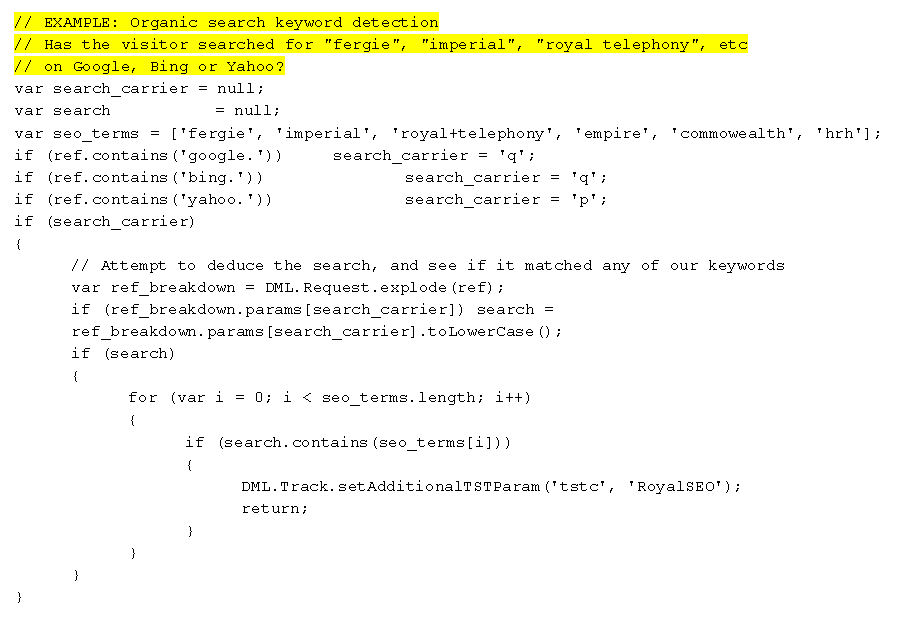
Example of a Campaign Tracking script we might help you create (this one's for an organic search campaign)
Tips for using the Campaign Tracking eComponent
- BASIC: If you're not sure where to start with this eComponent, contact your Account Manager!
- ADVANCED: The tracking script must be called eCom_resolve_campaign
- ADVANCED: It takes no parameters, but has access to standard JS environment variables
- ADVANCED: It should set tst_additional_param.tstX where X is c, s or m.
- Please note: this is only a brief introduction - to find out more, join an eCom 2.0 webinar.